You can connect your WordPress website to MixCRM in a few minutes. After that, every form submission can become a contact in MixCRM. Follow the steps below.
Before you start
You need WordPress 5.8 or newer and PHP 7.4 or newer. Your MixCRM address must use https.
Connect in 7 steps
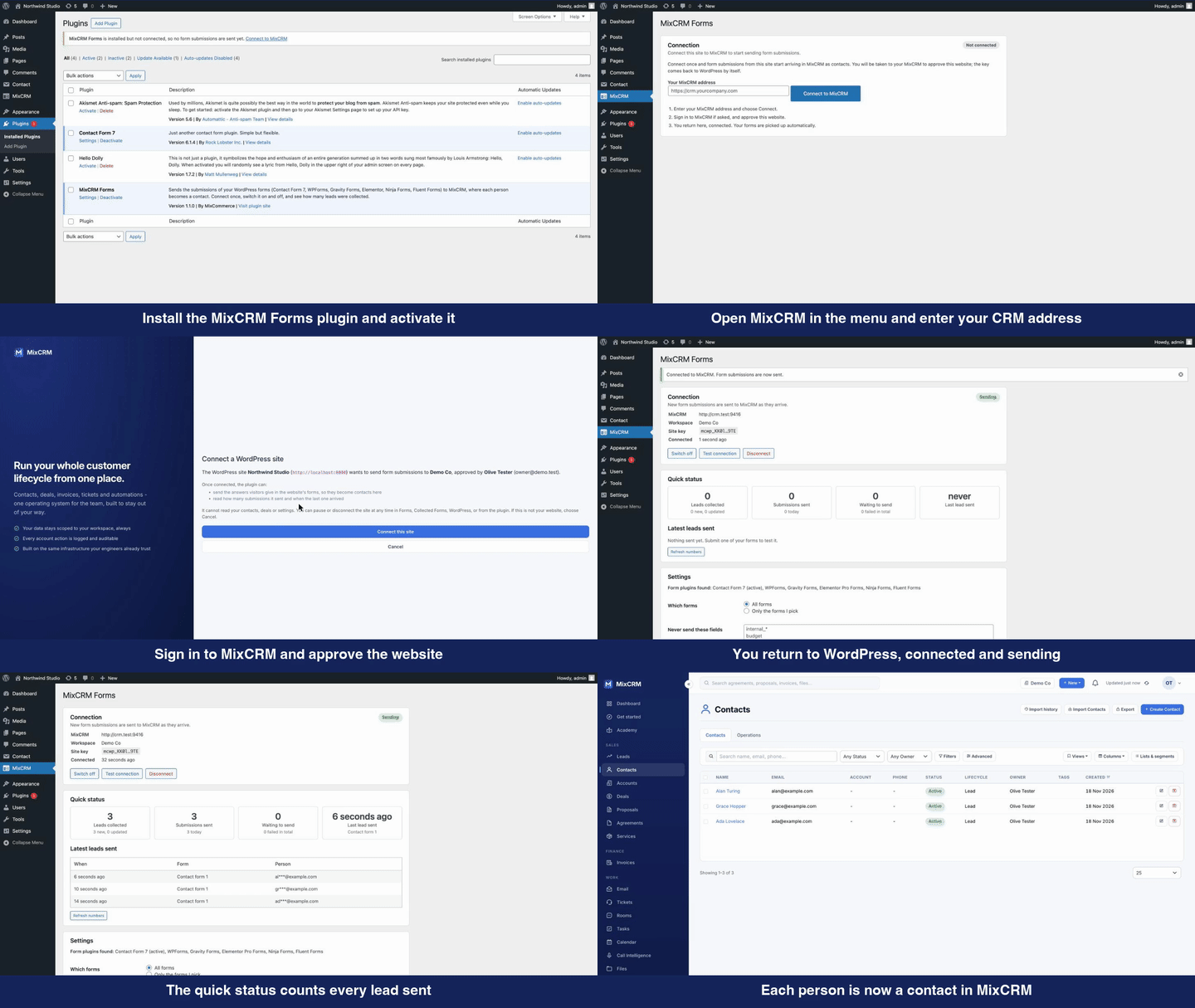
- Install the MixCRM Forms plugin and activate it.
- Open MixCRM in the WordPress menu on the left.
- Type your MixCRM address, for example crm.yourcompany.com with https in front, and choose Connect to MixCRM.
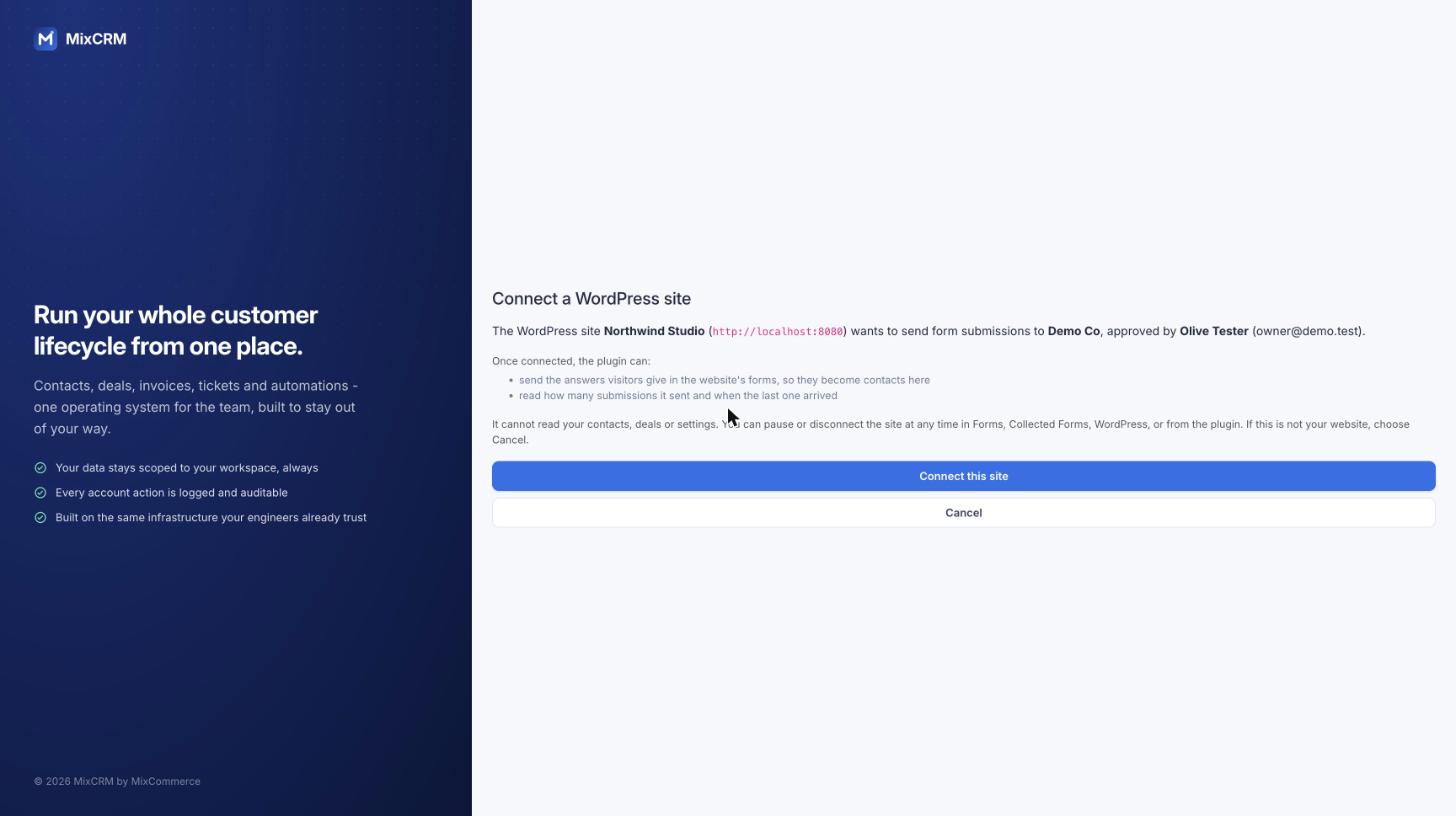
- MixCRM opens. Sign in if asked and approve the website. Only an owner, an administrator or someone who can manage Collected Forms can approve.
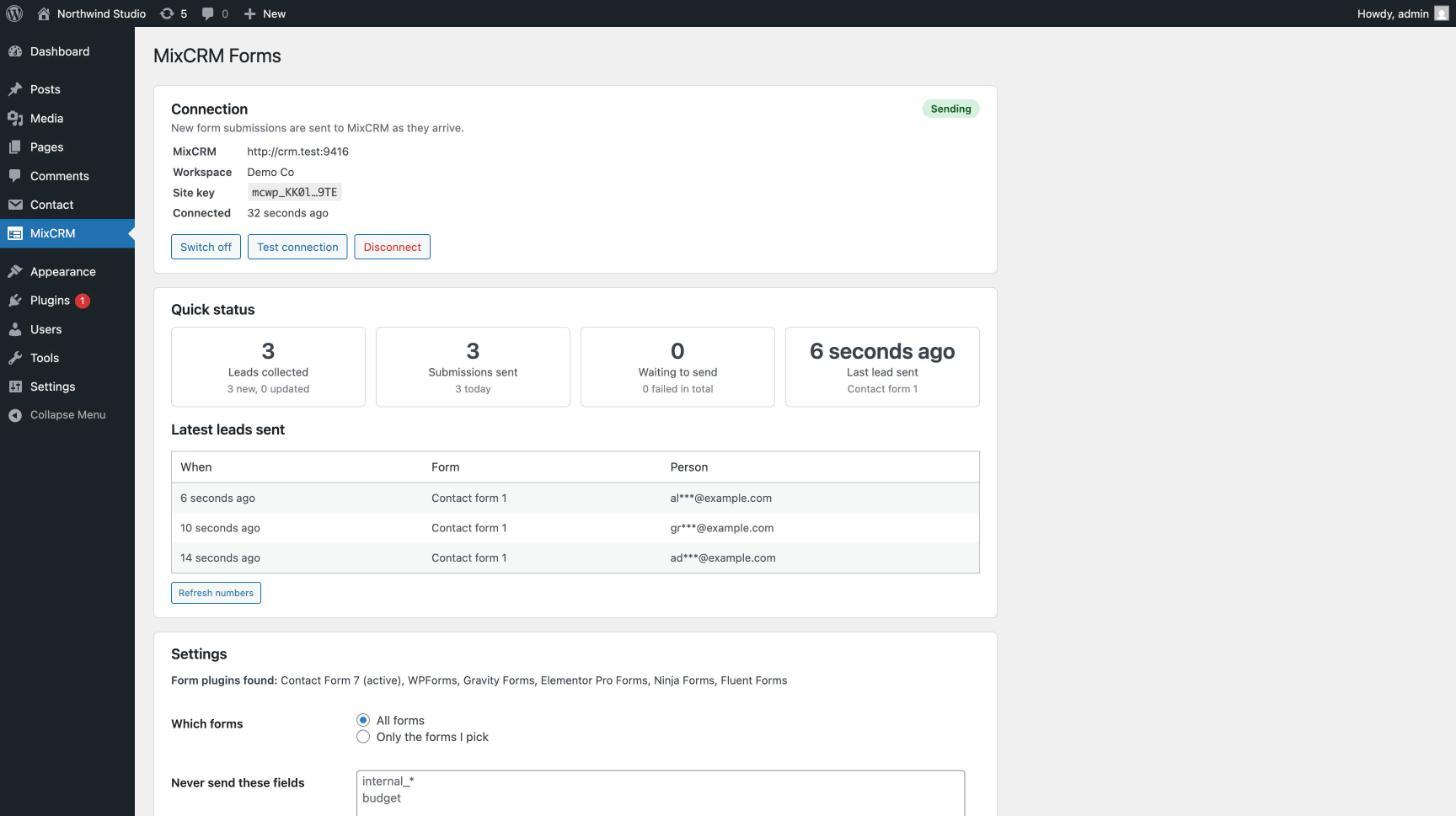
- You return to WordPress. The status shows Sending and your workspace name.
- Submit one of your forms to test it. The lead shows in Latest leads sent, and the person appears as a contact in MixCRM.
- Optional. Set your preferences, as shown in the next section.
Optional settings
- Choose which forms to send.
- Choose fields that are never sent.
- Turn on a consent checkbox so only people who agreed are sent.
- Remember where visitors came from, so each lead keeps its source.
Troubleshooting
- Your MixCRM address must use https. A local test address is allowed for development.
- Switched off means sending is turned off in WordPress. Turn it on to start sending again.
- Paused in MixCRM means the site was paused from MixCRM. Resume it in MixCRM under Forms, Collected Forms, Connected sites.
- Connection problem means WordPress cannot reach MixCRM right now. Check the address. Waiting submissions are retried automatically.
- Disconnect removes the link between this website and MixCRM. You can connect again at any time.
Manage the site from MixCRM
A site can be paused or disconnected from MixCRM too. Open Forms, then Collected Forms, then the Connected sites tab. There you can pause a site, resume it or disconnect it.